CODATCODAT
CODATCODAT
BlogFrequently Asked QuestionsContact
RegisterLogin

Where to find IMEI, serial number or EID

A simple guide for iPhone, iPad and iPod touch. You can find these numbers in Settings, on the device, in Finder or on the original box – and use them for Apple support or for IMEI checks on Codat.ro.

iPhone

The easiest way is in the Settings app. If you can’t unlock the device, you can also check the SIM tray, the box or your Apple account.

In Settings

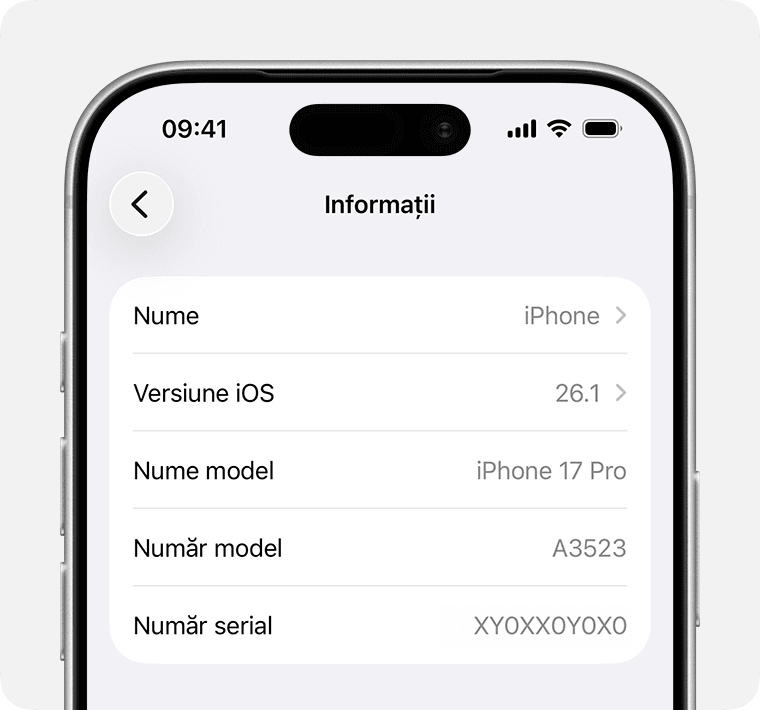
  1. Open Settings and tap General.
  2. Tap About.
  3. Find the serial number; scroll down for EID, IMEI/MEID and ICCID.

You can long-press a number to copy it for forms or Apple support.

About screen on iPhone showing serial number and IMEI

On the device or SIM tray

If you can’t open Settings, you can use IMEI/MEID instead of the serial number (where available).

iPhone 14 and newer models do not have IMEI/MEID engraved on the device.

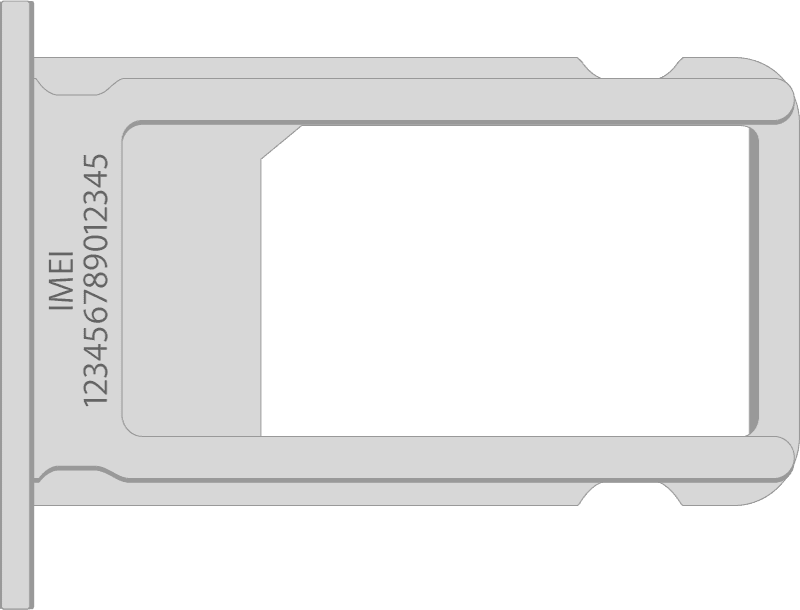
Serial in Settings, IMEI/MEID on SIM tray:

  • iPhone 13
  • iPhone 13 mini
  • iPhone 13 Pro
  • iPhone 13 Pro Max
  • iPhone 12
  • iPhone 12 mini
  • iPhone 12 Pro
  • iPhone 12 Pro Max
  • iPhone SE (3rd generation)
  • iPhone SE (2nd generation)
  • iPhone 11
  • iPhone 11 Pro
  • iPhone 11 Pro Max
  • iPhone XS
  • iPhone XS Max
  • iPhone XR
  • iPhone X
  • iPhone 8
  • iPhone 8 Plus
  • iPhone 7
  • iPhone 7 Plus
  • iPhone 6s
  • iPhone 6s Plus
SIM tray showing IMEI number

Serial in Settings, IMEI/MEID on the back (MEID = first 14 digits of IMEI):

  • iPhone 6
  • iPhone 6 Plus
  • iPhone SE (1st generation)
  • iPhone 5s
  • iPhone 5c
  • iPhone 5

Serial and IMEI/MEID on SIM tray:

  • iPhone 3G
  • iPhone 3GS
  • iPhone 4 (GSM model)
  • iPhone 4s

On the original iPhone, serial and IMEI are engraved on the back.

Before you set up your iPhone

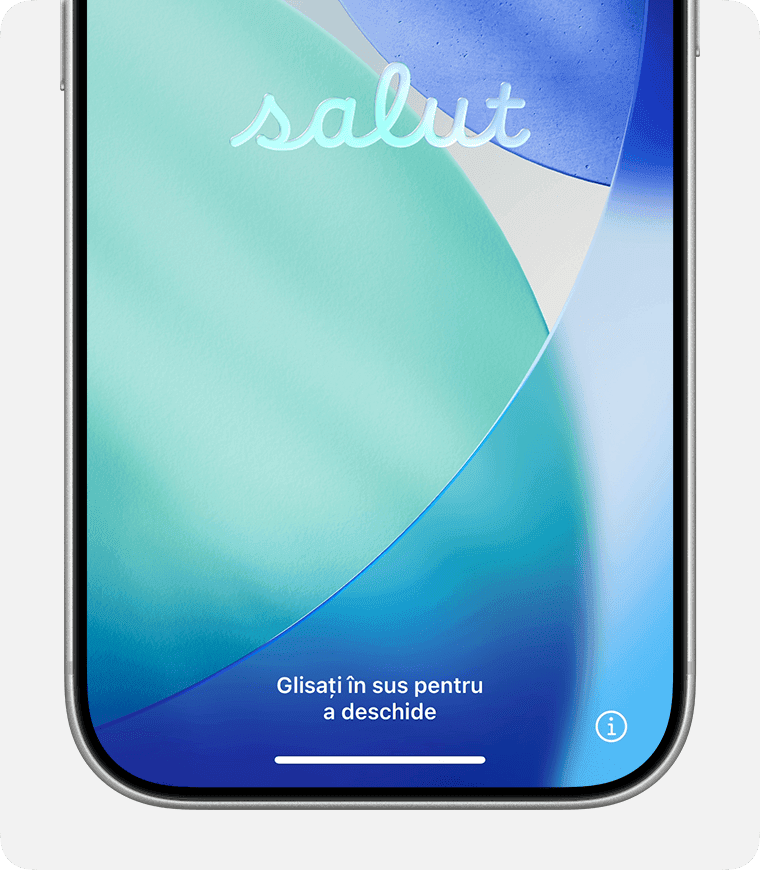
  1. Turn on the device.
  2. Hold the side button until you see the Apple logo, then the “Hello” screen in several languages.
  3. Tap the i (information) button in the bottom-right corner.
Hello screen on iPhone

Other ways to find serial or IMEI

You can also use your computer, your Apple account or the original packaging.

Finder, Apple Devices or iTunes

Connect the device to your Mac or PC:

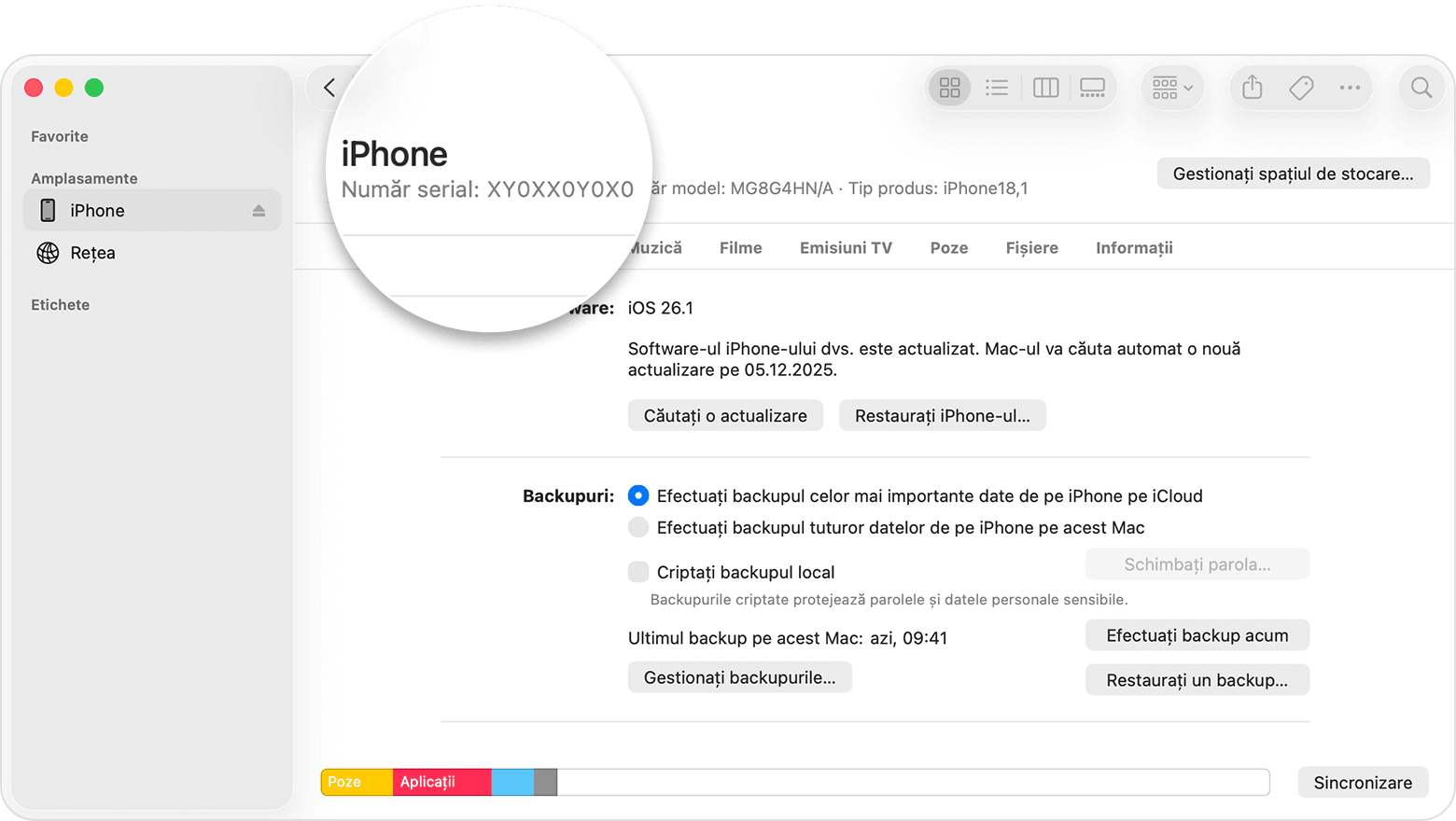
  1. On a Mac with macOS Catalina or later: open Finder. On older Macs or PC: use iTunes or Apple Devices.
  2. Select the device; in Finder, go to the General tab.
  3. Click the model name to see the serial number.
  4. For iPhone: click Phone number for EID, IMEI/MEID, ICCID. For cellular iPad: click Serial number for CDN, EID, IMEI/MEID, ICCID.

To copy: Edit > Copy Serial Number.

Finder showing iPhone serial number

Apple account (account.apple.com)

  1. Sign in with the Apple ID used on the device.
  2. Go to the Devices section.
  3. Select the device to see serial, EID or IMEI/MEID.

Apple account from another device

Have another iPhone or iPad with iOS 10.3 or later signed in to the same Apple ID?

  1. On that device: Settings → [your name].
  2. Scroll down to devices signed in to your account.
  3. Tap the device name.

Original packaging

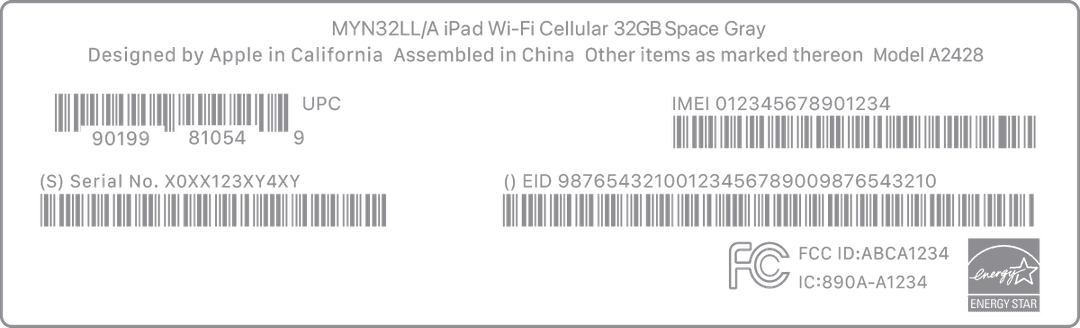
The serial number, EID and IMEI/MEID may be on the barcode on the original box.

Package showing serial number

Information about products or websites not controlled by Apple is provided without recommendation. Apple is not responsible for third-party content.

Source:

Apple Support – Find the serial number, EID or IMEI

Found your IMEI? Check your device now.

Check an IMEI now
Codat.roCodat.ro

Verifications

  • Apple Verification
  • iPhone
  • iPad
  • Apple Watch
  • MacBook
  • iMac
  • Mac Mini
  • Samsung
  • Xiaomi
  • Huawei
  • Google Pixel
  • OnePlus
  • OPPO
  • Motorola
  • Apple Verification
  • iPhone
  • iPad
  • Apple Watch
  • MacBook
  • iMac
  • Mac Mini
  • Samsung
  • Xiaomi
  • Huawei
  • Google Pixel
  • OnePlus
  • OPPO
  • Motorola

Pages

  • Frequently asked questions
  • How to find IMEI
  • What would you like to check?
  • Blog
  • About us
  • Contact
  • Pricing
  • Report a stolen phone
  • Request PRO access
  • Frequently asked questions
  • How to find IMEI
  • What would you like to check?
  • Blog
  • About us
  • Contact
  • Pricing
  • Report a stolen phone
  • Request PRO access

Legal

  • Terms and conditions
  • Privacy policy
  • Cookie policy
  • Refund policy
  • Data usage policy
  • Data deletion
  • Terms and conditions
  • Privacy policy
  • Cookie policy
  • Refund policy
  • Data usage policy
  • Data deletion
Visa
Mastercard
American Express
Apple Pay
Apple Pay
Google PayGoogle Pay
Platforma Europeană de Soluționare Alternativă a LitigiilorSAL - Soluționarea Alternativă a Litigiilor ANPC

Made with ❤️ in Romania

© 2026 CODAT.RO - All rights reserved

FIXLY TECHNOLOGY SRL

Tax ID: 47040460 · Nr. Înmatriculare: J2022000789071

Subscribe to newsletter

Get the latest news and offers directly in your inbox.

Unsubscribe from our newsletter